
Choosing a PHP version
PHP is the language WordPress runs on, and each site on your plan can run its own version. New sites start on a current, supported release. Occasionally you will want to change it: usually up, for speed and security, and rarely down, to keep an old plugin alive while you replace it.
Why the version matters
- Speed. Each major PHP release has been faster than the last. Moving an older site to a current release is one of the cheapest performance wins there is.
- Security. Only recent versions receive security fixes. WordPress itself lists the version it recommends in its own requirements.
- Compatibility. Very old plugins and themes may throw errors on new releases. That is a reason to replace the plugin, not to stay on old PHP forever.
Check which version a site uses
In WordPress, Tools, Site Health, Info, Server shows the PHP version in use. The control panel shows it too, on the site's PHP settings screen.
Change the version
- Open the site in your account area and press Open control panel.
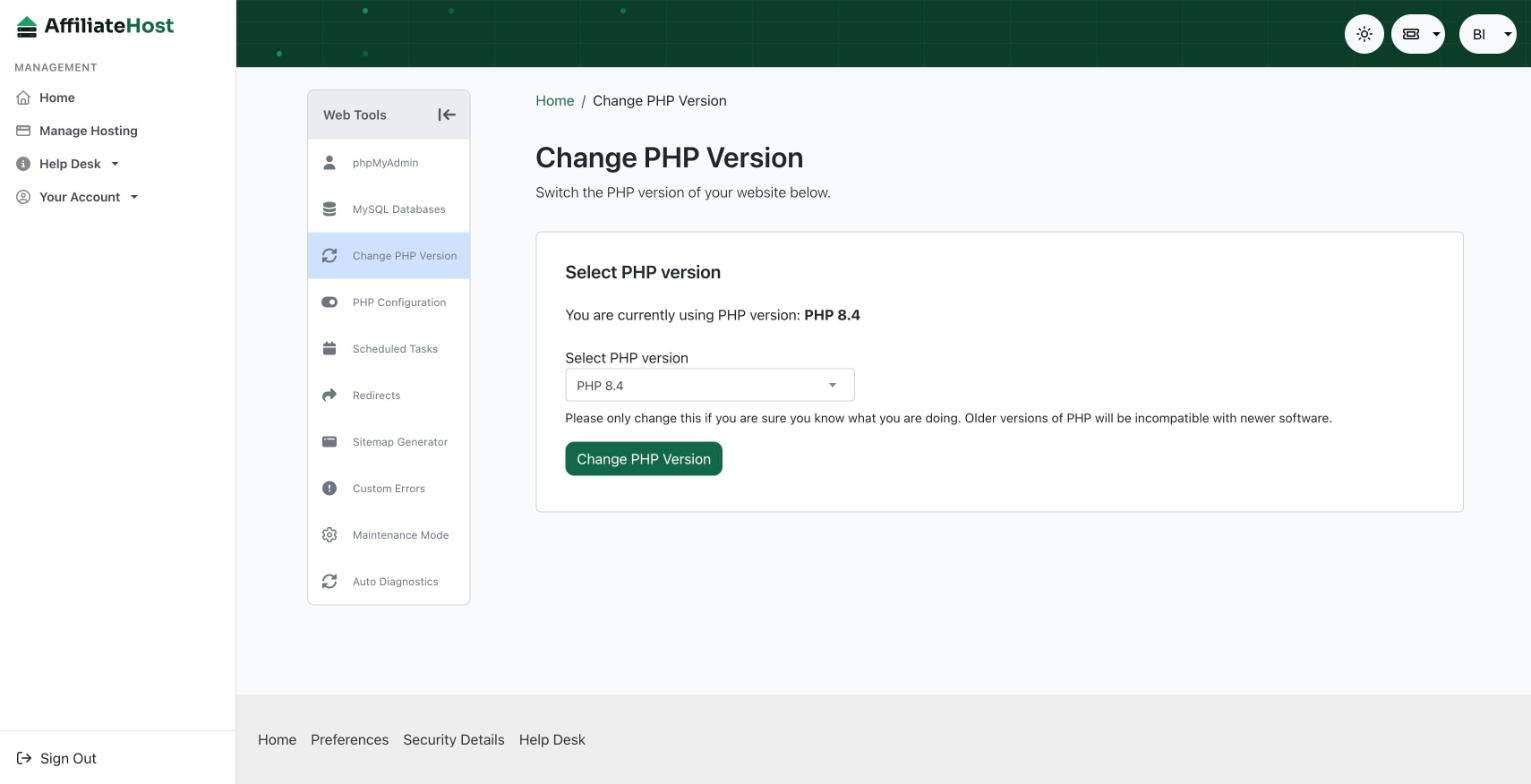
- Open the site's PHP settings.
- Choose the version and save. The change applies within a minute, with no restart on your side.
Test before you switch a site that earns
- Create a staging copy.
- Change the PHP version on the staging copy.
- Open the admin and your main templates: home, a review, a comparison table, the contact form.
- If something breaks, the error names the plugin or theme file. Update it, replace it, or ask its author.
- Switch the live site once staging is clean.
If the site breaks after changing
Switch back to the previous version in the control panel; the site recovers immediately. Then find the cause on staging. A white screen or "critical error" page right after a change almost always means one plugin or theme uses a function that no longer exists in the new release. WordPress emails the admin address a recovery link with the file name when it catches the error.
PHP settings beyond the version
The same screen typically lets you adjust limits such as memory, upload size, and execution time. The defaults suit WordPress. Raise the upload limit if you import large media files; raise memory only if a plugin says so and the message is specific.
Keeping current
Check the version once or twice a year, when WordPress announces a new recommended minimum, and move up on staging first. Sites that stay current rarely need this article again.
Was this helpful? If something here is unclear or out of date, tell us and we will fix it.
Related articles
Detailed control panel how-tos live in the Help Desk inside your control panel. Open it from your account area.